Showing posts with label Blockmixing. Show all posts

How to make grass in the air + general grass mixing tips

|
This guide will help you blockmix grass in the air. This is pretty basic blockmixing, and it's in fact exactly the same procedure as when you make water in the air (but I will add some grass-specific tips and tricks).

This guide presumes you already know how to use ChallengeEdit (CE), or other CE-based blockmixing programs (like TS). If you don't, google some guides or read the water mixing article I linked above.

To make grass, we need to transform blocks. The first thing you have to do is to add transformable blocks (a block that does not exist yet in your track) to your track. The blocks don't have to be placed the exact same place you want the grass to appear, as you can move them afterward. It is of course faster and easier to place them the exact same place if it's possible for you.

Every image except the CE image can be shown in a big version by clicking the image.

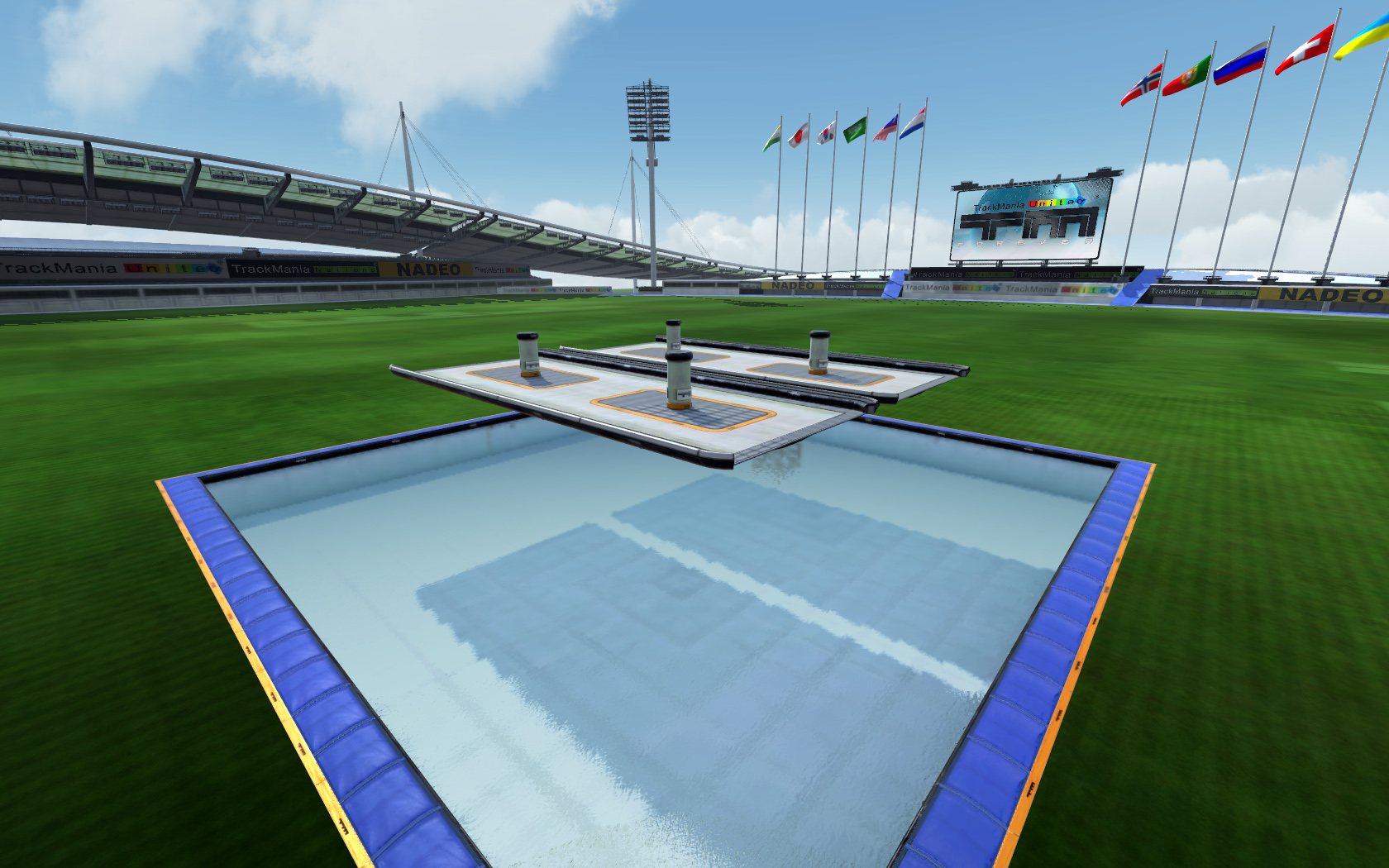
I want to add four grass blocks in the air, so I have placed four transformable blocks where I want the grass. I have chosen the block "StadiumHolePillar" simply because the block hasn't been used in my map yet. Save the track and go to CE.


  1. The first thing you have to do is to select the primary block. The primary block is the first block you placed of its kind. The primary block is marked with a "-P" as you can see in the screenshot. When you change the primary block's name, all the other blocks of the same kind will also be changed.
  2. When you have selected the first block (the first StadiumHolePillar in my case), you have to press the "unlock" button. This allows you to change the block type of all StadiumHolePillars. Press OK.
  3. Step three is to select the block "StadiumGrass" from the block list. Do not use StadiumGrassClip.
  4. Press "Save block modifications to memory". You will now see that all the blocks of the type you chose, have changed name to "StadiumGrass".


You can now move the grass blocks around if necessary. Save the map. You should now have grass in your track.


Double-mixing
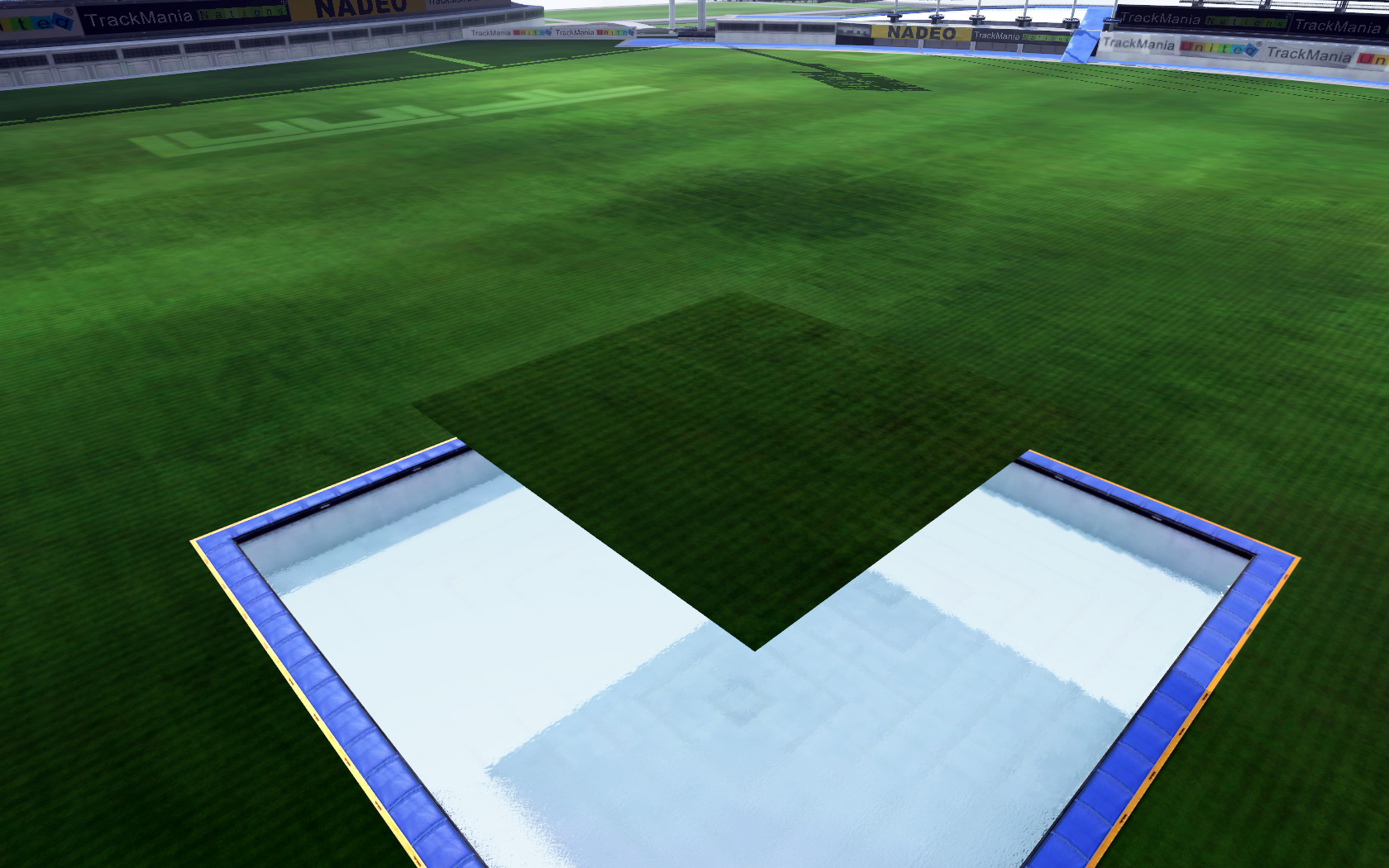
For some reason, mixed grass and/or water will sometimes just disappear from your track after you transform it, but it will still be in the block list in CE. To make the grass/water visible again, simply repeat the process so you have two grass/water blocks on every block. Your grass/water should now be visible again. Sometimes grass/water will disappear from CE as well, if this is the case you have to re-do everything.

Tips and tricks
The back button
Never use it. The back button has an habit to magically unmix stuff. Variation 16 mixes will be lost, grass will disappear and Trackmania will often crash. Never use it. Use the delete button or hide the blocks with CE if they are undeletable.

Fill gaps
Have you ever had a hole into "infinity" on your track? This is caused by many things, and a grass block is the cleanest way to fix this. This will even make cool and new tricks.

Here you see what happens when you mix various blocks to Z=1. Holes.
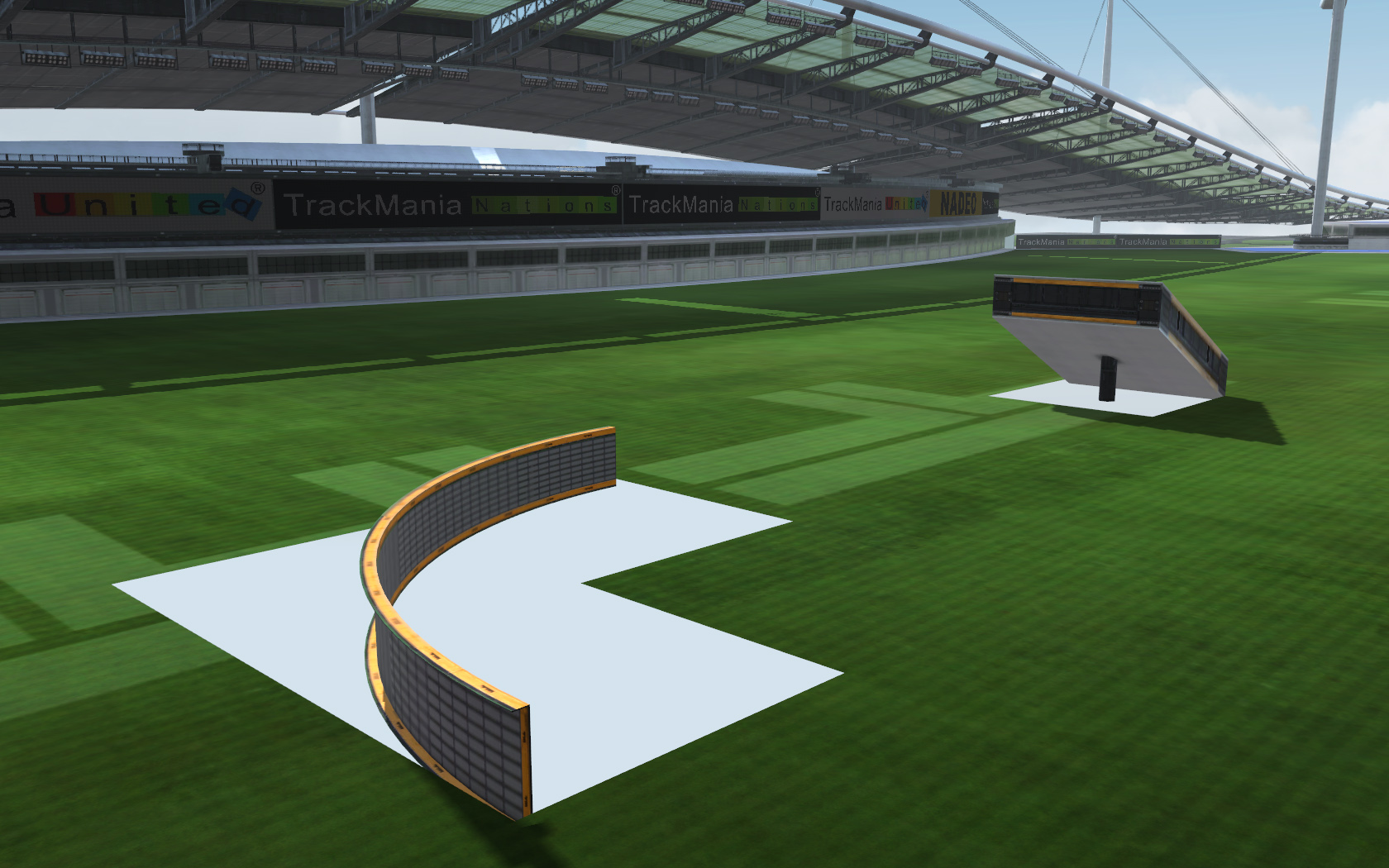


And here is what happens when you fix it. Pretty nice? All you have to do is place grass blocks in the gaps with Z=0 (you might have to double mix).
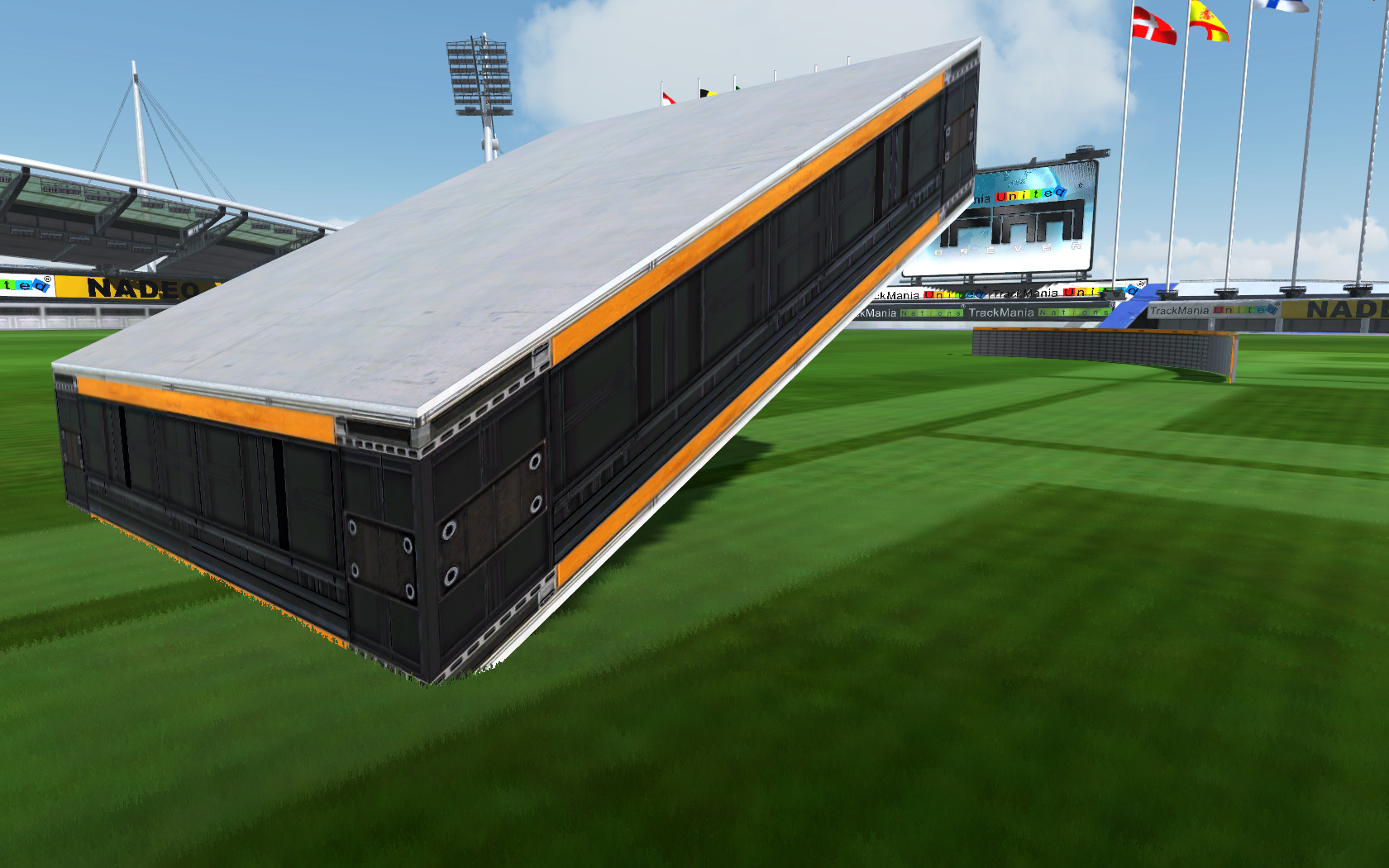


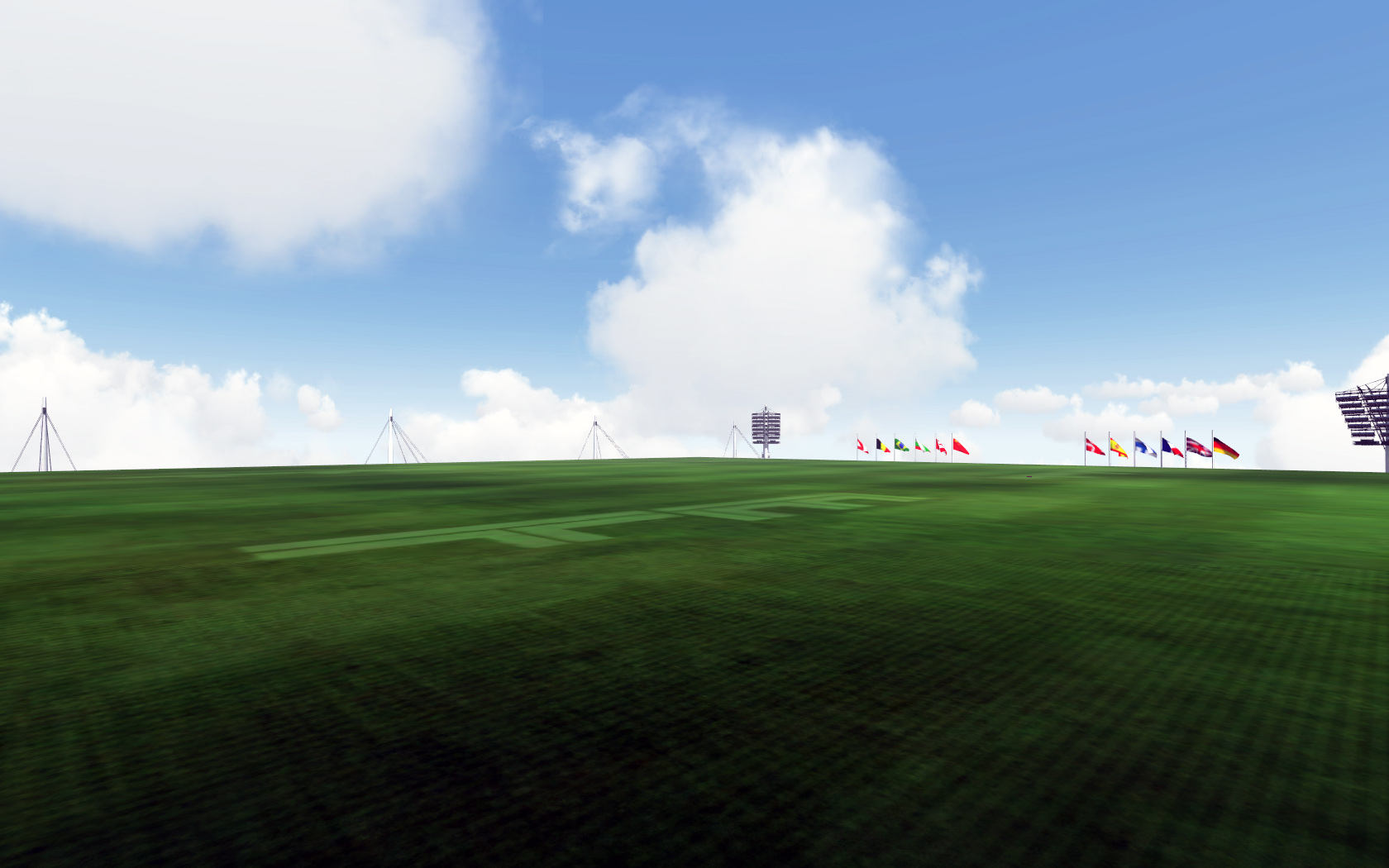
Make entire floors
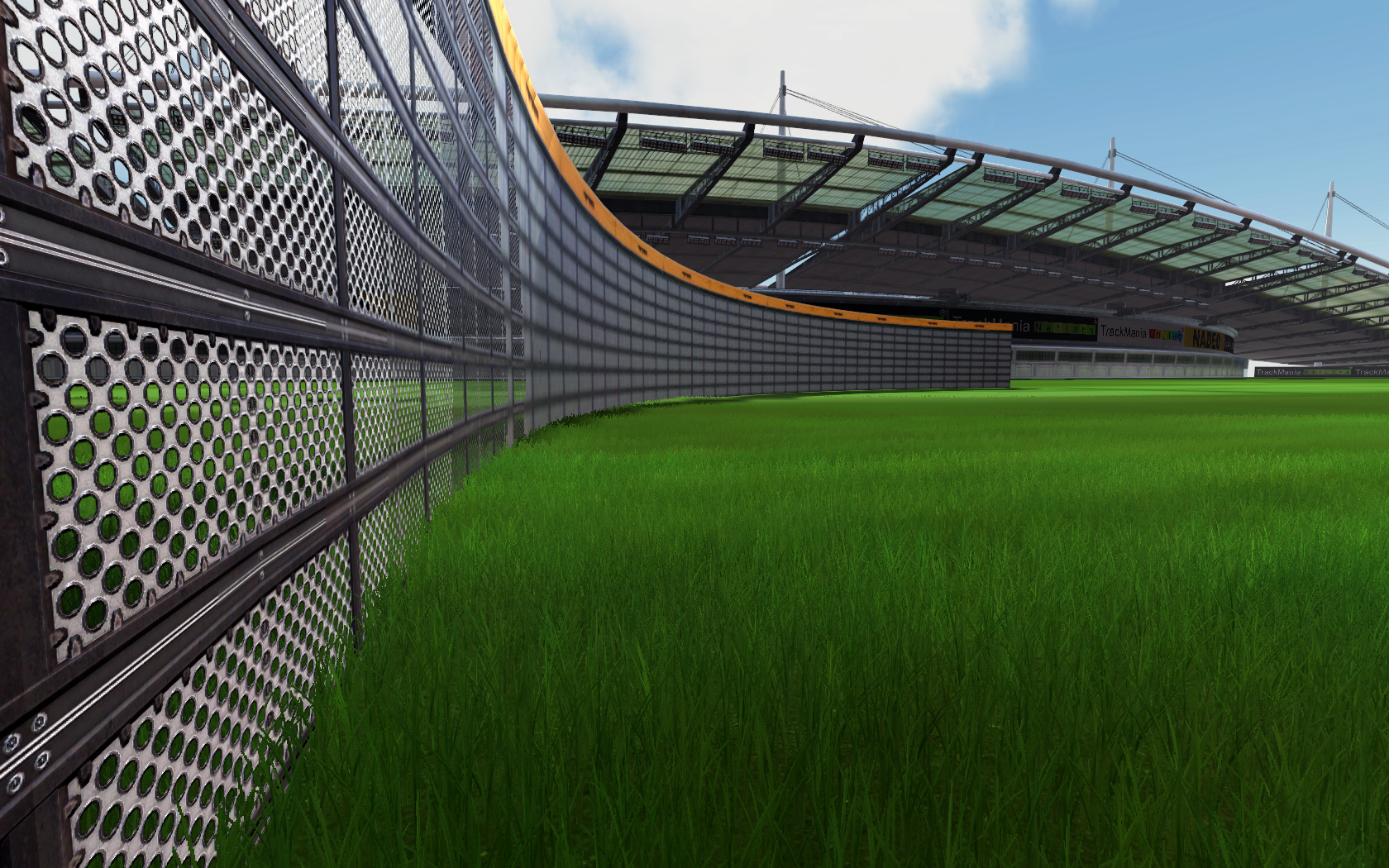
Ever wanted to make a multi-level map? Well now you can. Just add grass blocks to the entire stadium and you have a new floor. You can even start your track on a higher level and then work your way down. This will make some pretty cool mixes too. You can place high blocks underneath the grass and only parts of the blocks will go through the grass. This is limited to Z=0 on the normal grass, but now you can use even higher blocks and other types of blocks. Experiment.


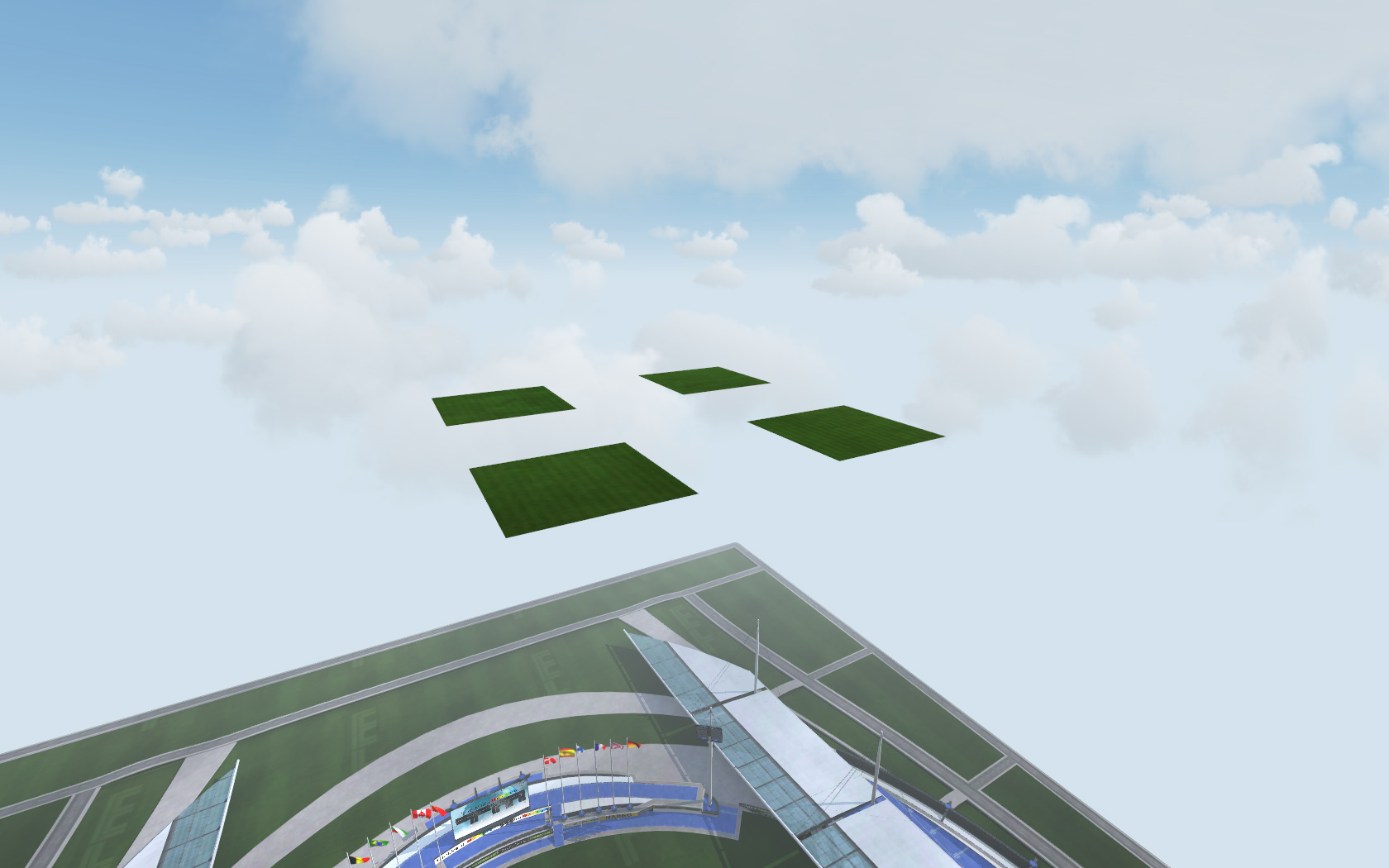
It works above the stadium
Yes, you can blockmix grass blocks above the stadium, but not outside the X or Y coordinates. With creativity you can make some really unique tracks with this method (I have an upcoming map myself with this trick).


Grass is invisible from beneath
This is cool. Why? Well, you can make traps and you can make bugs. Be creative.

Unofficial TrackStudio model addon released

|
Good news for us RPG mappers: the promising blockmixing program with a 3D interface, TrackStudio, has gotten an unofficial model addon release adding nearly all the missing models (over 400). The models are made and released by HawkGer; the reason it's an unofficial release is that the creator of TS, tossha, hasn't been online for many weeks, and the models are a great resource that shouldn't be held inaccessible to mappers. It's important to notice that tossha has not validated these models yet, so there might be errors in them.


Here is an early introduction video to TrackStudio:


Download link, screenshots, comments and instructions are available in the RPG forum: http://www.trackmania-rpg.com/251-unofficial-trackstudio-model-addon-400-new-models.html.

New mapping technology + blockmixing tutorials

|
Two days ago MixD and CMC held a competition in which a new mapping technology was unveiled. With this new technology it is now possible to use the car handling of all seven environment cars in your track, no matter in which environment you build. How effective this new technology is for building Stadium RPG's with United car handling and if finally the combination of United tracks with the Stadium handling will boost United RPG's remains to be seen.
Naturally, players not in the possession of TMU cannot make use of tracks build with this technology.
Here's one example video of a Desert track with Stadium car:


It is not possible to convert existing track, that's why blank bases have to be downloaded (42 total): http://magnusknight.com/tm/envmix/


Advanced Water Mixing Tutorial
Have you ever wondered how it is possible to make water re-appear after it has been replaced by a block? If you do, Stromek has posted a very helpful tutorial on the RPG Forum: http://www.trackmania-rpg.com/133-tutorial-advanced-blockmix-technique.html


Mixing outside the Stadium
Another tutorial dealing with blockmixing has been posted by Igntul, explaining how and under which restrictions it is possible to place blocks outside the stadium: http://www.trackmania-rpg.com/135-tutorial-blockmixing-out-of-the-building-area.html


Transforming Landscapes
GSNPaul posted a very detailed guide on how to use variations and rotations of blocks in ChallengeEdit to create Dirt-landscapes. Anyone ever wanting to enrich their RPG's with those elements should follow that guide.
http://www.trackmania-rpg.com/147-advanced-mixing-with-landscape-blocks.html#post472

RPG Track building - techniques, features & resources

|
There are some features and techniques around track building that can only be learned by long enduring self-testing or by other's experience - and as information are sometimes hard to find, I'm trying to cover here some things that are especially related to RPG track building.

But first of all we would like to announce that we now offer a zip-archive with a collection of all mods we list in the 'Mods'-section. If you already have many mods saved in your "...skins/stadium/mod"-folder then it will be easier downloading the files individually from the mods section, but for newcomers this 900mb big file will be useful both for racing and track building.
Many thanks to fallen.soul for hosting the file:
www.vinummusik.de/Trackmania/RPG_Mods.zip


The first thing I wanna show is how to control ColorFX-effects in the MediaTracker for far- and near settings, like Enai Siaion did on his track 'Ex Gehenna', creating a fog-like atmosphere. Hageldave already made a very complete video tutorial about this a few months ago, so I recommend watching this:


If you are familiar with RPG tracks, you probably already have seen Platform blocks that are cut off at their bottom end to form a gap one can drive through. In case you don't know how these can be created, here's the explanation:

The first step is to create a heightened dirt area and place the platform block ("StadiumCircuitBase") directly on the heightened dirt, which would look like this:

Save the track and open it in ChallengeEdit (Download CE). Search for the block "StadiumCircuitBase", click it and then increase the Z-value by your preferred amount (it will raise the block).Click on "save block modifications to memory" and then save the .Gbx-file. When having done everything correct, you should see a shortened platformblock as shown below.

An even easier way of achieving this effect is to place the platformblock at the actual designated area and change it's Variation2 in ChallengeEdit to 16. The platformblock will then be shortened even without being on the ground. If you don't know how to change a block's variation, read the tutorials below.


Water blocks are very often used in RPG's but they have the negative side-effect that it's not possible to build under them and are hard to modify. I will detail a quite easy method of dealing with this.


Instead of taking the water blocks from a stadiumpool, we simply put other blocks on the exact same location we want the water to be and then transform the blocks into stadiumwater. Any block will work but I recommend picking one that you will later never use in your track, in my case the finishline-block.

Load the track now into ChallengeEdit and select the first "StadiumRoadMainFinishLine"-entry. The first block of one block type that has been placed in the editor (and is thus also shown first in the ChallengeEdit-block's list) is always the primary block for this specific block type which is marked with a "-P" before it's name (look picture below).
When having selected the primary block, you can now click the Unlock-Button below the block list and select a different block type (in our case StadiumWater). Pressing on "Save block modifications to memory" will then change all Finishline-Blocks to Stadiumwater.

With this result after having saved the .Gbx:

If you are now not pleased for example with the pipe that goes along under the water or want to add blocks under the water, you just have to reverse the process and turn the primary "StadiumWater" into "StadiumRoadMainFinishLine".


This process of transforming blocks can also be used to create dirt areas in the air very effectively.
Here's how my example looks before and after some editing in ChallengeEdit.

The end result is a natural-looking dirt area consisting of some dirt hills and flat dirt. For the flat dirt I placed Finishline-blocks and transformed them in ChallengeEdit into "StadiumDirt". The dirt hills I created by putting "StadiumPlatformLoopStart"-blocks on their location and transformed them into "StadiumDirtHill".

The problem though is that the dirthill-block comes in three different shapes. Just transforming a primary block into dirthill will produce the same shape for all dirthills, as can be seen in my example:

For this problem ChallengeEdit also offers a solution, the variations.
When having selected a block, at the lower right side of ChallengeEdit will appear four boxes with the according texts "Variation 1", ..2 etc. By default, all values in the boxes are at zero.
Because in the previous picture the variations of the dirt hills haven't been changed yet, they are in the shape of Variation {0,0,0,0}. For block 109 this shape is already correct so we don't need to change it, only rotating the block is necessary. By changing Variation 1 to "9" and Variation 2 to "16", we get the curved shape of the dirthill which we need for the blocks 105 and 112. The third shape (not curved) can be created by changing Variation 1 to "5" and Variation 2 to "16" which we need for all the blocks that are left.


The last thing I want to show also has something to do with the transform-feature of ChallengeEdit - but with the end result of mixing blocks ingame.

For this we first need a large area of blocks, all of the same type. In the example I'm going to use the FinishLine-Block again. The blocks need to cover the area completely without spaces. After having done that, save the track as a copy so you can later use it as a template. Start adding blocks over the area now. It looks like this in principle:

Change the primary FinishLine-Block now into some other block in ChallengeEdit ("StadiumSculptB" is probably best suited for this) the same way I already explained in the other tutorials. The StadiumScluptB-Blocks are mixed with the other blocks now and after deleting the Sculpture-Blocks, you can freely mix new blocks into the already existing blocks inside the editor. The blocks that were mixed with the Sculpture-Blocks always stay mixable, so even if you added new blocks to them, you can delete them and add different blocks.

This technique is mostly only useful for experimenting with blockmixes, not for making regular blockmixes in a track project as it is more time-consumptive. But the advantage when experimenting is that you can always test the mixes directly in the editor and can change them directly if needed.

For more detailed information about Blockmixing and ChallengeEdit, visit TM-Creative

Any questions left? Ask away in the comment section :-)